
Customers can use Beyond Compare to compare the binary data of VibrationVIEW files, allowing them to compare one VRP to another VRP—or one VRD to another VRD—without needing an intermediate, manually created plain-text file. This makes it easy to identify exactly what changed between profiles or data files. For example, if a profile ran successfully three months ago but no longer runs today, Beyond Compare can help pinpoint what was modified and potentially failed to be logged.
Question
How can I Compare Binary VibrationVIEW Profiles?
Answer
Create a text format
- Download Beyond Compare from Scooter Software, Inc.
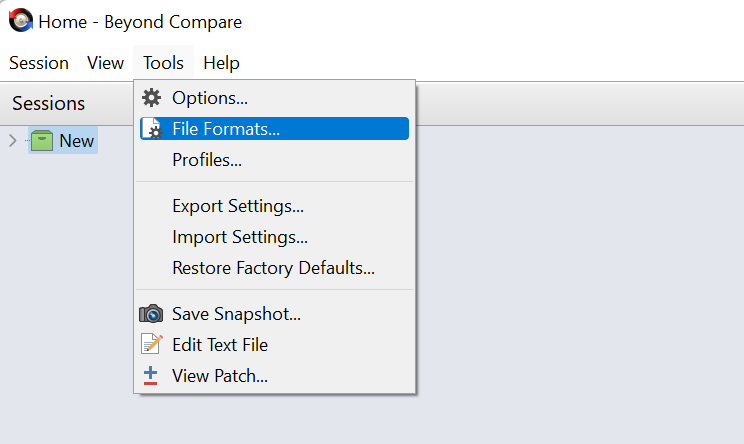
- In Beyond Compare’s main toolbar, select Tools > File Formats…
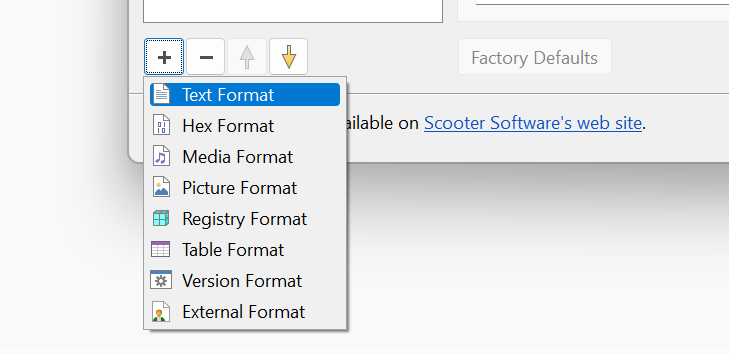
- In the File Formats dialog, select the + button in the lower left corner to add a new format
- Select Text Format as the the file format type
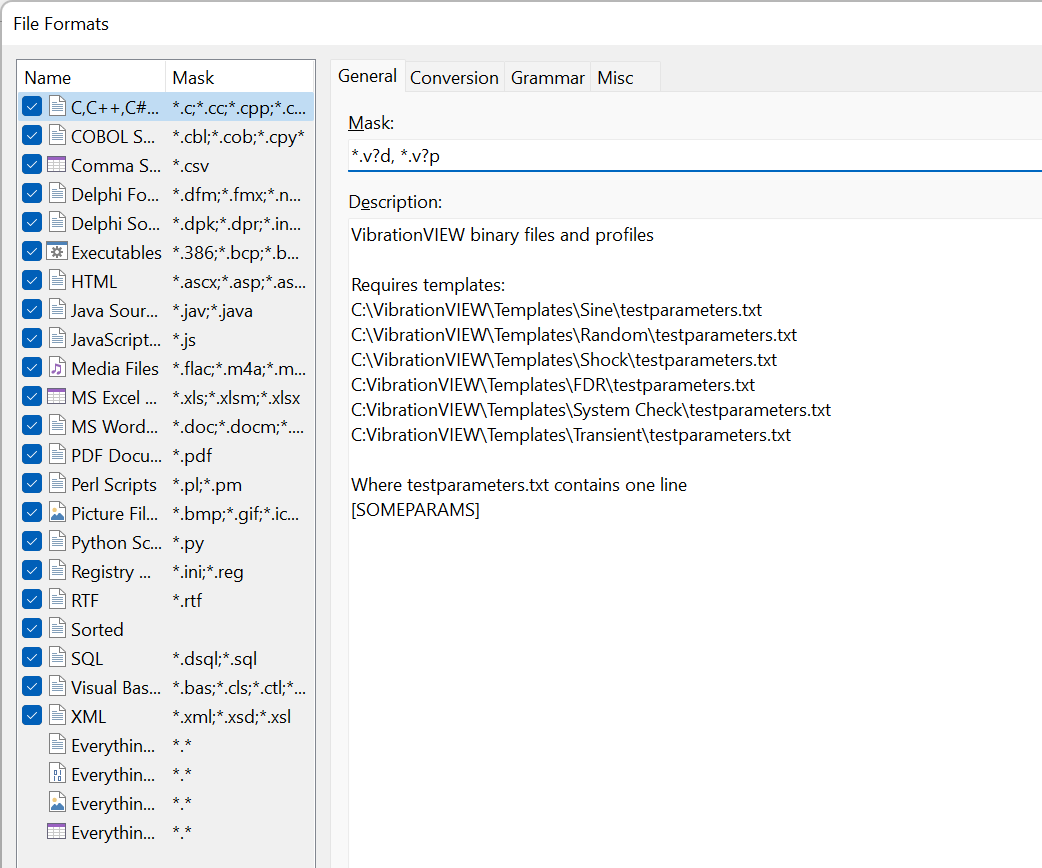
- In the Mask field, enter: *.v?d, *.v?p
- (Optional) In the Description field, enter:
VibrationVIEW binary files and profiles
Requires templates:
C:\VibrationVIEW\Templates\Sine\testparameters.txt
C:\VibrationVIEW\Templates\Random\testparameters.txt
C:\VibrationVIEW\Templates\Shock\testparameters.txt
C:VibrationVIEW\Templates\FDR\testparameters.txt
C:VibrationVIEW\Templates\System Check\testparameters.txt
C:VibrationVIEW\Templates\Transient\testparameters.txt
Where testparameters.txt contains one line
[SOMEPARAMS]
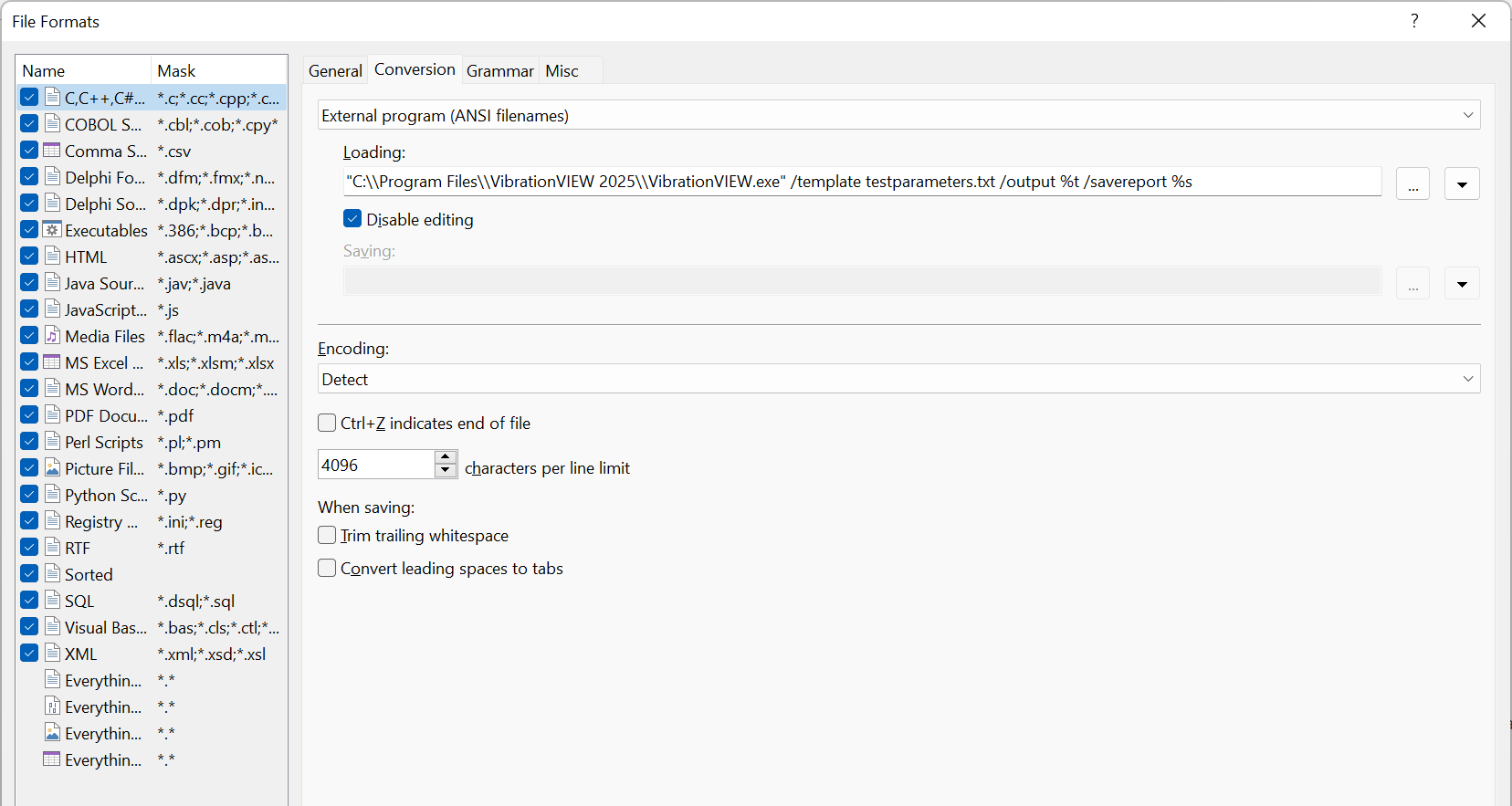
- Navigate to the Conversion tab
- In the first field, select External Program (ANSI filenames) from the drop-down list
- In the Loading field, enter:
“C:\Program Files\VibrationVIEW 2025\VibrationVIEW.exe” /template testparameters.txt /output %t /savereport %s
- Select the Disable editing checkbox
- Select the Save button; the program will create a new line item that can be renamed (ex. “VibrationVIEW Files”)
Create Templates
- Each VibrationVIEW test type directory (Sine, Random, Shock, FDR, System Check, Transient) must have the “testparameters.txt” report template; the template can be as simple as:
—testparameters.txt—————–
[SOMEPARAMS]
————————————-
NOTE: [SOMEPARAMS] does not include parameters that will always change, such as current date and time. The comparison will display all “real” changes between templates and not artificial changes.
Compare Files
- In Beyond Compare, select the Text Compare option
- Select the *.v?d, *.v?p files to compare
- Select the the Format button drop-down and select the previously saved text format