
VR9700
Why are you ending production of the VR9500 hardware?
VR released the VR9500 in 2008, and many original components are no longer available. The VR9700 is the next step in vibration control. It has an updated architecture and increased processing power, allowing us to implement more advanced software features.
Why should my lab upgrade to the VR9700?
Upgrading to the VR9700 will ensure your laboratory stays at the forefront of technological capability. A faster processor can support more advanced software capabilities. Laboratories with multiple units can reduce the footprint of their system(s) and the noise/ground loops generated by their controllers.
Compared to the VR9500, the VR9700
- Supports higher sampling rates (256kHz inputs and analog outputs)
- Processes faster and has more memory
- Dual-core ARM CPU (versus the VR9500’s single core RISC)
- Supports 104,000 lines of resolution in Random
- Includes improved features to reduce/limit system noise and ground loops
Will you continue to support the VR9500 after it's discontinued?
Yes, VR plans will continue to provide support for the VR9500 hardware, eventually encouraging customers to upgrade to new hardware with a trade-in program. However, future software features may require the faster processor/increased capabilities of the VR9700.
When does the VR9500's lifetime hardware warranty end?
The lifetime warranty ends six years after the last iteration of the hardware is added to the price list. The date for the last iteration of the VR9500 is still to be determined; as such, the warranty is valid for at least six more years.
What is the warranty on the VR9700?
The VR9700 comes with a 3-year hardware warranty that can be extended to a lifetime warranty with a valid support agreement.
How many channels does the VR9700 support, and is it rack mountable?
The VR9700 is stackable for up to 128 channels and is rack mountable.
Will the VR9700 work with the VR9700 or VR10500?
The VR9700 can be configured with the VR10500 or ObserVR1000 for control in VibrationVIEW or live analysis in Live Analyzer.
Where is the power switch?
The VR9700 hardware does not have a power switch. You can leave the unit on in-between use without an issue. Connecting/disconnecting the device from a power source functions the same as the on/off switch on other VR hardware. VR’s software development team is also developing a “green mode,” where the hardware automatically enters a power-saving mode after a period of inactivity. To reduce power usage while the hardware device is connected to power but not in use, engineers can turn off the IEPE power to accelerometers under Configuration > Inputs. No matter the hardware, engineers should always turn down the amplifier gain when a test is not running.
What is the benefit of a double-isolated chassis?
The VR9700’s Class II power double-insulated chassis eliminates the potential of a ground loop created through the safety ground, a common issue in vibration control systems. Isolating the inputs and outputs improves overall signal integrity and reduces external noise. The isolation can be disabled for the few cases that require a bonded ground connection.
Software
What are the PC specifications for the software?
Download the VibrationVIEW PC Specifications document.
Download the ObserVIEW PC Specifications document.
Which Vibration Research hardware and software are compatible?
The user can run any of the three Vibration Research software applications (VibrationVIEW, ObserVIEW, and VR Mobile) on all VR hardware. Each software package offers different capabilities when paired with the hardware.
What is VR Mobile?
VR Mobile is embedded software that runs on Vibration Research hardware. The user can connect to VR Mobile and interact with the software on a smartphone or tablet using a WiFi connection.
Can I test your products before purchasing?
Put us to the test! Our software is free to download, and you can activate a free online trial of our paid features. Simply click to activate! We also offer free 30-day demos of our hardware so you can experience how well our hardware and software are integrated.
How do I transfer the software from one PC to another?
To transfer the software, you have to copy the registry settings from one PC to another. Use the Windows Registry Editor (regedit) and export HKEY_CURRENT_USER\Software\Vibration Research Corporation to a file (right-click > Export). Copy the file to the new PC, and use regedit to import it (File > Import).
VibrationVIEW
Where can I find my available features and software version?
Select Help > About VibrationVIEW to view the version of your software and the installed packages. The version number is also printed on the VibrationVIEW CD label.
VibrationVIEW’s available software modules can be viewed on the control software page.
Can I purchase additional software modules after my initial system purchase?
Yes, contact the Vibration Research sales team or your sales representative to enable additional software modules. Delivery is fast and easy. You will receive a link to download a key update file; install the key update file to enable the new software module.
What is the latest version of VibrationVIEW?
- Download the current version from the Software Updates page
- VibrationVIEW 2016.2 for the VR8500 unit
- VibrationVIEW 3.1.7 for the VR7500 unit
If you purchased your vibration control system from Vibration Research in the last year or have a current Upgrades & Support Agreement, then you are entitled to free software updates. If your system is older than 1 year, call Vibration Research at 616.669.3028 or email us.
What is Quick Test?
The Quick Test option serves as the default for Sine, Random, and Shock tests. It is a quick option for defining tests and requires the entry of just a few simple parameters. Selecting the Advanced button on the bottom left of the dialog box directs the user to VibrationVIEW’s standard multi-tab dialog box.
The Quick Test option can be removed as the default if it is not preferred. To set the Advanced test option as the default for the Sine, Random, and Shock modes, select Configuration > Parameters. On the left, point to Global Parameters and deselect “Define new tests as Quick Tests.” Select OK.
VibrationVIEW says my key has expired. What should I do?
If your control computer is connected to the internet:
- Select Help > Check for Key Update in the VibrationVIEW menu
- Upgrade to the current version of VibrationVIEW software
- Verify that your controller invoice has been paid
- Verify that your primary controller is set to Channels 1 to 4 (VR9500/VR9700) or 1 to 16 (VR10500) in Configuration > Hardware
If you are still experiencing issues, please contact Vibration Research at support@vibrationresearch.com or call 616.669.3028.
Windows Defender Firewall is Blocking VibrationVIEW. What should I do?
You may encounter a situation where VibrationVIEW cannot communicate with the controller. The underlying reason may be hard to pinpoint: a new VibrationVIEW version may have been installed or Windows Updates may have introduced a change. Most often, however, the issue is due to the Windows Defender Firewall blocking VibrationVIEW, even if the Firewall is off.
Follow these steps to ensure VibrationVIEW is allowed through the Windows Defender Firewall.
- Navigate to the Windows Start button on the bottom left of your screen.
- In the Search Bar, type “Allow an app through Windows Firewall.”
- Select the Allow an app through Windows Firewall option.
- Select the Change Settings button.
- Make sure all the VibrationVIEW entries on the list are selected for Domain, Private, and Public networks.
- After selecting all the boxes, select OK.
How do I generate an automatic Random Import profile?
Select the Import tab on the Random Test Settings dialog box.
From there, you can automatically generate a spectrum profile from input data. The input can be a set of frequency/amplitude breakpoints or a time/acceleration history stored in a text file.
To input data from a file, perform the following procedure:
- Select the input method from the drop-down list.
- Select the input file button and choose a file. The software will scan the file, and the dialog box will update to reflect the contents of the file.
- Set the sampling rate, header lines, and column number for the acceleration data, and the acceleration units used in the file.
- Select the spectrum generation method. The import procedure will divide the file into 1,024 sample blocks, compute the spectrum for each block, and then combine the blocks according to the selected method. Average will average all the spectra using a uniform average. Peak hold will extract the peak values over all the blocks at each frequency.
- Select the Create Table button to process the file and create the frequency/amplitude breakpoint table from the input file.
How do I set up my controller hardware with VibrationVIEW?
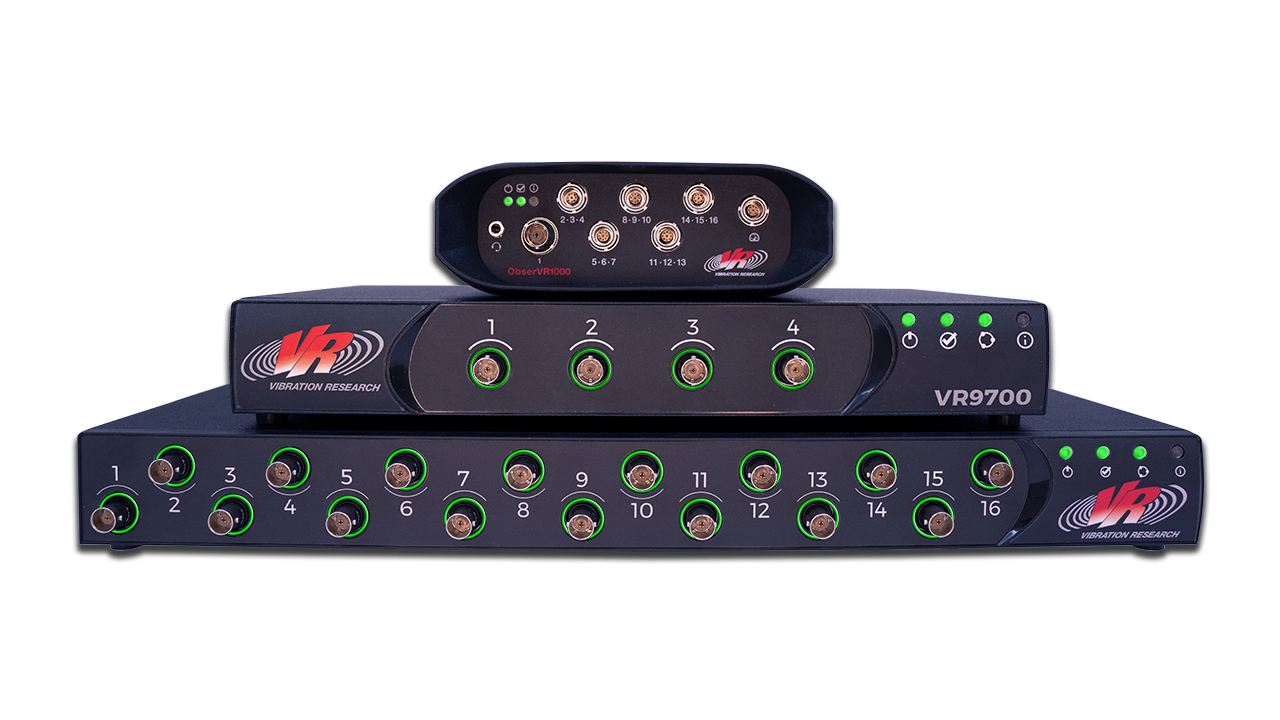
ObserVIEW
Where can I find my license and version number?
Select File > Settings > License to view the version of your software and the activated features. The version number is also printed on the ObserVIEW CD label.
The licenses for ObserVIEW are Basic, Advanced, Order Analysis, FDS, SRS, and Modal Testing. A license key is optional. Contact Sales to enable additional features.
How many PCs can I activate with one ObserVIEW license key?
Per the EULA, the software may be installed on any number of PCs provided that it is used on one PC at a time. A reasonable number of PCs registered with the same key is allowed.
If the PC activation limit is exceeded, the license activation will fail. Support must be contacted to resolve the activation issue. Additional activation may be granted provided that the user adheres to the license terms.
Is there a way to deactivate a license?
Contact support to deactivate a PC license.
Can ObserVIEW receive a license from my hardware box?
Yes, the user can activate ObserVIEW by connecting to a Vibration Research I/O unit licensed for use with ObserVIEW.
I don’t own Vibration Research hardware. Can I open my recordings in ObserVIEW?
Yes, ObserVIEW supports the following file types: .csv, .txt, .rpc, .rsp, .uff, .unv, and .wav, in addition to VibrationVIEW recording files (.vfw).
Reports
What is Report Builder?
Report Builder is VibrationVIEW’s built-in word processor for generating reports. It previews the working design and updates automatically to parameter adjustments. You can open the program while the test is running and make changes to the report, or schedule to view/save a report at the end of the test.
Report Builder allows engineers to easily create custom reports.
Feature Highlights
- Preview a report before generating a docx or PDF file
- Edit a report and preview changes (switch between codes and results)
- Update report to reflect changes to the test/data file
- Access relevant text editor commands, such as styles and page layout
- Copy-and-paste graphs and images from the test/data file
- Save a report as a template for future use
- Format graphs with responsive scaling options
How do I automatically generate a report when my test completes?
- Select Edit Test in the main ribbon to access the test settings and navigate to the Schedule tab.
-
- If the test settings are in Simple mode, select the Advanced button to navigate to the Schedule tab.
- Select the Insert button to add a row to the end of your test schedule.
- Navigate to the leftmost drop-down list in the new row and select the Save Report option.
- In the same row, select the Browse button. Select the template the program should use to generate the report.
Define the Storage Directory
- Select the Data tab. To the right of the “Data storage directory” field, select Browse. Select the directory where the program should store data.
-
- Select the “Save reports in Data storage directory” checkbox to save reports to the same directory. Alternatively, select a different storage directory for reports.
- Below “Save data to disk,” select your choice(s) of three automatic report options.
Note: Below “Graph annotation lines,” you can enter information such as test sample number, test technician, shaker serial number, etc. to be included in the report.
How do I make a custom report template?
To customize a pre-defined report template in Report Builder (versions 2024 and newer):
- The default configuration for the Report button is “Classic Report.” Select the Report button, and the template folder related to the current test type will appear.
- Double-click on a VibrationVIEW template (.vvtemplate), and the software will open it in Report Builder.
Note: Each testing mode uses separate templates.
- The default view in the Report Builder is the test results. To view the parameter codes, select the Show Codes button on the main ribbon.
- Edit the template in the Report Builder. To preview changes to the parameter codes, select the Show Results button. If any changes are made to the test profile while the Report Builder is open, select the Update All Fields button to update the working report.
Report Parameters
- To view the list of report parameters, navigate to the Report tab and select the Report Parameters button.
-
- If a report parameter is channel-specific, select the parameter, navigate to the Arguments column, and use the drop-down list to select a channel. This action will set all channel-specific parameters to the selected channel.
- Finally, right-click a row and select “Copy values for columns included in copy operation” or click and drag the parameter into the document.
- When the changes are complete, navigate to the File tab and select a save option. The Save As Template saves the document as a report template.
Hardware
I have a VR9500. Why should I upgrade my hardware?
Upgrade to the VR9700/VR10500
Discover the new and exciting features of our latest controllers and read more on why you should upgrade: Vibration Control Systems.
| VR9500 | VR9700 | |
| Processor |
Single Core RISC |
Dual Core ARM with DDR4 memory |
| Lines of resolution |
26,000 |
104,000 |
| Sample frequency |
Up to 200 kHz |
Up to 256 kHz |
| BNC outputs |
24-bit |
32-bit |
| USB port |
No |
Yes |
| Digital drive output |
No |
Yes |
| Double-insulated chassis |
No |
Yes |
| Supports TruDAC digital output |
No |
Yes |
| Isolated inputs/outputs |
No |
Yes |
| Green mode |
No |
Yes |
| Noise floor |
<70nV/√Hz |
<65nV/√Hz |
Where can I register my hardware, and why should I do so?
You can register your VR hardware online.
VR9500, VR9700, & VR10500
You will access a free, 1-year upgrades & support agreement (U&SA) by registering your VR9500, VR9700, or VR10500. Renewals are available on an annual basis, and continuous coverage with no lapses ensures a lifetime guarantee on your hardware.
ObserVR1000
You will activate the 1-year hardware warranty on the ObserVR1000 by registering your device.
How many channels do the Vibration Research systems support?
- VR9500 supports up to 128 channels
- VR9700 supports up to 128 channels
- VR10500 supports up to 512 channels
- ObserVR1000 supports up to 128 channels
High-channel-count and Multi-shaker Systems
The VR10500 is a high-powered option for vibration testing, designed to coordinate with high-channel-count and multi-shaker configurations.
What is your hardware warranty?
VR warrants its hardware to be free of defects in material and craftsmanship. The warranty covers hardware failure under normal conditions. It does not cover damage due to wear and tear, neglect, misuse, or failure to follow instructions relating to the hardware’s use. Please contact Vibration Research or your sales representative for more information about our warranty.
VR9500, VR9700 & VR10500
The VR9500, VR9700, and VR10500 hardware includes a three-year hardware warranty that can be extended to a lifetime warranty by continual renewal of an upgrades & support agreement with no lapse.
ObserVR1000
The ObserVR1000 hardware includes a one-year hardware warranty.
How can I get a demonstration of a Vibration Research hardware unit?
Call Vibration Research Corporation at (616) 669-3028, email us at vrsales@vibrationresearch.com, or talk to one of our representatives.
How can I view a controller's dynamic range?
The importance of a vibration controller’s dynamic range is often misunderstood. A controller may specify the input or output dynamic range or the overall range.
Rather than referencing the specifications, you can run a test with the controller to view the total system dynamic range. To run the test, create a Random profile with a section of the profile set to no output. You can determine the random dynamic range by observing the actual level of the profile.
The Chinese government uses test specification JJG 529-88 to specify a system’s dynamic range. The engineer can run the test on a shaker system or on the controller “looped on itself.” The test has the following breakpoints:
| 20 Hz | -40 dB |
| 80 Hz | 0 dB |
| 300 Hz | 0 dB |
| 350 Hz | -40 dB |
| 350 Hz – 500 Hz | no energy |
| 500 Hz | -40 dB |
| 600 Hz | -20 dB |
| 650 Hz | -20 dB |
| 700 Hz | 0 dB |
| 750 Hz | -20 dB |
| 800 Hz | -20 dB |
| 1000 Hz | 0 dB |
| 1500 Hz | 0 dB |
| 2000 Hz | -20 dB |
The VR9500 demonstrated a dynamic range of 90+dB with JJG 529-88. Many controllers that claim 80dB of dynamic range show only 50dB or 60dB with these specifications. Lack of adequate dynamic range may cause system problems when controlling a fixture with a large resonance.
The figure below displays a more detailed explanation of the dynamic range.
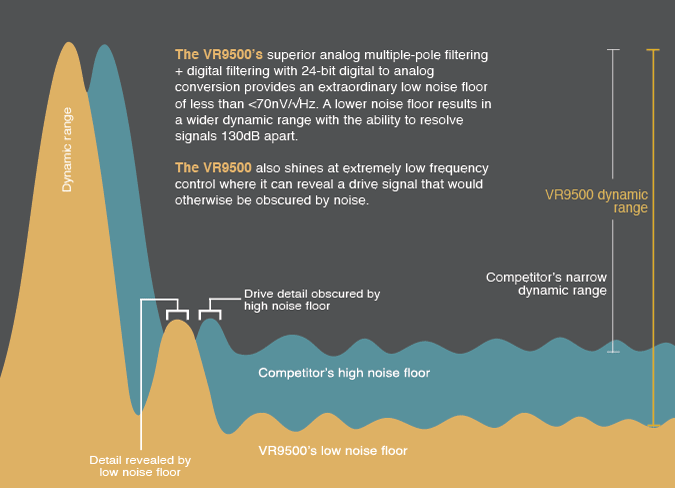
For a more detailed explanation, please see the paper “Examining the Dynamic Range of Your Controller.”
Is my controller working properly?
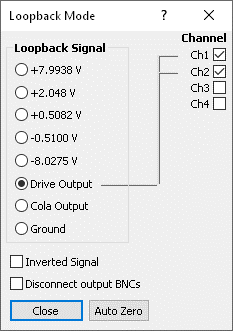
A vibration testing system may generate an error or stop operation without a clear cause. It could be a loose connection, frayed cables, issues with the amplifier, a malfunctioning shaker, or, in rare cases, a problem with the controller. Loopback Diagnostics is a straightforward way to determine if your controller is working properly.
Loopback Diagnostics is a VibrationVIEW tool that allows the user to verify the functionality of a VR controller. It internally connects the drive or COLA to the input channels (usually during a System Check test), eliminating the need for BNC cables or running a shaker.
CAUTION: The drive and COLA outputs remain active in Loopback mode. By looping the drive back to the control channels, you are running the controller open-loop (the control channel is disconnected from any accelerometer connected to the input channels). Make sure to disable your shaker or disconnect the drive cable to prevent shaker movement.
CAUTION: Channels connected in Loopback mode must be disconnected from any accelerometers or input sensors. Any channel limits defined in the System Check test profile will be enforced on the Loopback signal, not the actual input signal.
For detailed instructions on setting up and running Loopback Diagnostics, please see the following video:
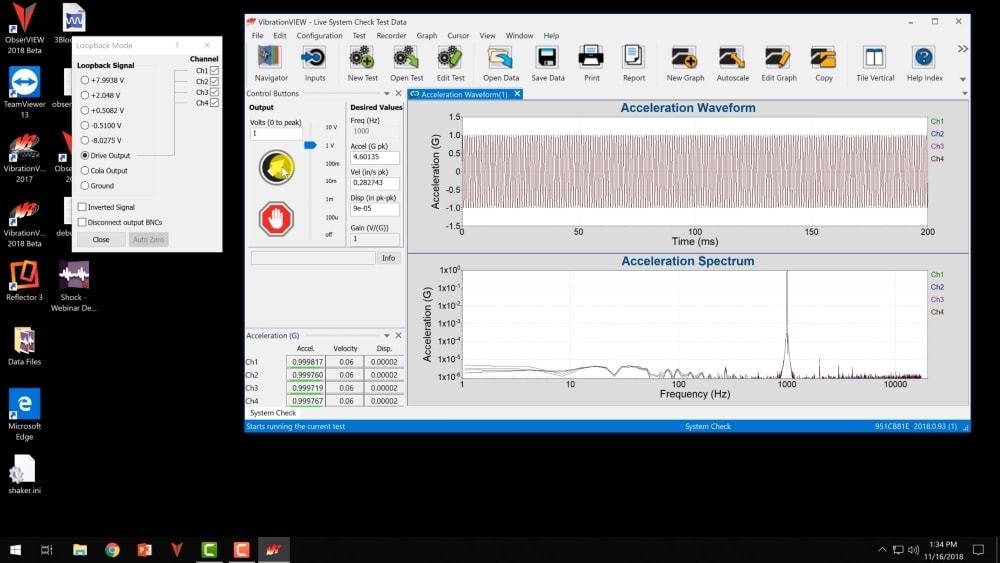
If the input channels are displaying accurate voltages, then the problem is in one of the other components and not the VR controller.
Can I combine VR hardware devices?
Yes, you can configure any combination of the VR10500, VR9700, and ObserVR1000 for control in VibrationVIEW or live analysis in Live Analyzer.
What is the TruDAC digital output?
TruDAC is a digital control outputs device that serves several purposes:
- Detects disconnected and broken cables between the amplifier and controller
- Supports longer cable lengths between the amplifier and controller without control signal degradation
- Breaks the ground path between the amplifier and the controller drive, eliminating a common source of noise
TruDAC is a stand-alone unit that can be added to a VR10500 or VR9700 system.
Manuals
Where can I get an electronic copy of the manuals?
There are several manuals for Vibration Research hardware and software:
-
- VibrationVIEW operation manual
- ObserVIEW operation manual
- VibrationVIEW Quick Start Guide
- ObserVR1000 Quick Start Guide
- Hardware manuals (VR9500, VR9700, VR10500, and ObserVR1000)
All manuals are located on the software CD in the Manuals directory in a Word (.doc) or PDF format. The Word version requires Microsoft Word or the MS Word Viewer. The PDF version requires Adobe Acrobat Reader.
The manuals relevant to VibrationVIEW/ObserVIEW can be accessed in the Help file of the software.
The manuals can also be manually downloaded.
Emergency Stop Button
Why is the emergency stop button an important safety feature?
The emergency stop (e-stop) button provides further safety measures for lab personnel, testing equipment, and devices under test. It gives lab personnel a quick option to stop a test without putting a transient shock into the device under test.
How do I install an emergency stop button?
If you selected the optional e-stop button for your controller:
- Plug the Phoenix connector into the back of the I/O unit
- In VibrationVIEW, select Configuration > Remote Inputs
- Point to the eighth drop-down box and select “Emergency Stop Button.” Select the OK button.
Watch this video for a walkthrough of the software.
Calibration
How often should I calibrate my VR hardware?
We strongly recommend an annual calibration. The system arrives factory calibrated, so you do not need to calibrate it again until the due date on the calibration certificate.
What are my options for calibration?
There are three calibration options for the VR hardware:
- Send the hardware to Vibration Research for calibration (standard factory or A2LA-accredited options available)
- Calibrate the hardware yourself with VR software
- Perform the calibration yourself
Please see our calibration page to read more about these options.
I am experiencing trouble with calibration verification in my lab. What could be the issue?
Performing calibration verification in your lab can save time and money, but sometimes the process stops and it is not clear why.
Problems usually arise at one of two steps:
- If the Next > button is unavailable after selecting the device and configuration, then the analog connections (output to channel inputs) are not functioning and the verification process cannot move forward (see image below).
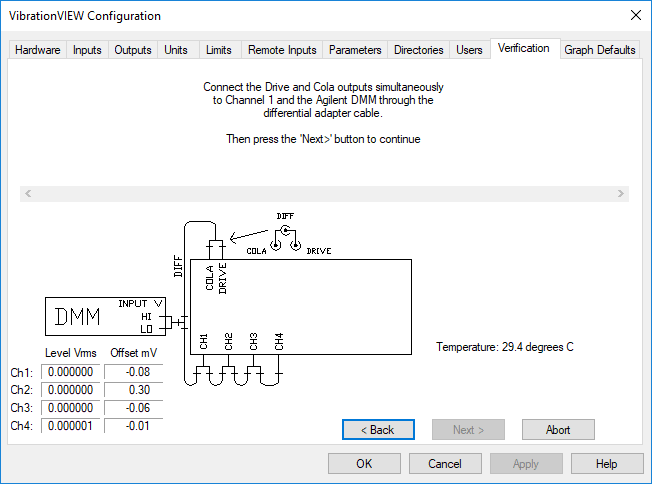
Check the cables and the connectors, as some components may be worn or frayed and have stopped functioning.
- VibrationVIEW populates the Certificate Entry form, including the digital multimeter (DMM) type. If the DMM is not connected properly, or if it is an unsupported DMM, then VibrationVIEW will not populate the form with the DMM information (see image below). The procedure may continue but will stop intermittently or fail because the appropriate connection between the DMM and the PC has not been established.

The most common DMM connection problem is due to a USB to serial adapter that isn’t fast enough to keep up with VibrationVIEW’s transmission speeds. Vibration Research recommends a B+B Smartworx USB to serial adapter (part number: 232USB9M). If you have a PC with a serial port, you can connect to the DMM directly with a null-modem cable instead.
If you are still experiencing trouble with the calibration verification procedure, please contact us.
My accelerometers require a recalibration: what do you suggest?
Vibration Research’s accelerometer calibration software performs automatic and accurate calibration and verification of IEPE accelerometers and charge-mode piezoelectric accelerometers in your lab.
Otherwise, we suggest that you send your accelerometers directly to the manufacturer for recalibration. If you purchased your accelerometer directly from VR and are unsure of the manufacturer, contact us for more information.
Shakers
What shakers can I control with my Vibration Research controller?
Vibration Research systems can control any electrodynamic or servo-hydraulic shaker.
How do I determine the correct shaker size?
The industry uses the equation force = mass x acceleration as the basis for sizing shakers and determining if a shaker can perform a shock or vibration test. All shakers have a force rating that determines what combination of mass and acceleration the shaker can achieve.
To perform a quick F=MA calculation, visit the calculator page.
What is total harmonic distortion?
Total harmonic distortion (THD) is the sum of the amplitudes of various harmonics when a pure sine tone is input into a system. THD not only measures the quality of a sine wave but can determine how well a system is replicating the signal from the controller. Small values indicate the system is performing as requested. In the physical test environment, a high value suggests a weakness or malfunction of the shaker system.
THD can measure the accuracy of a vibration system and help track system changes over time. You can buy harmonic distortion analyzers to perform the measurement or use a vibration controller/analyzer.
How can I measure the THD of my shaker with my vibration controller?
You can measure THD by exciting your system with a sine wave, reading the g2/Hz displayed by the system, and noting the difference in dB between the fundamental frequency and higher-order harmonics. The harmonics occur at 2x, 3x, 4x, etc. of the fundamental frequency. As most controllers read directly in g2/Hz, a change in 10x g2/Hz is a 10dB change. For example, 0.1 g2/Hz to 0.01 g2/Hz represents a 10dB change.
Remember: dB = 20 log (A/B). Thus, a 10% distortion (0.1 ratio) will appear as -20dB.
-20dB = 20 log (0.1)
The following is an example of harmonic distortion from a sine wave generator. The generator was set to 100Hz. The third harmonic is the highest spike at 40dB (4 major divisions) down from the 100Hz fundamental. This test reports the third harmonic distortion at 1%, which matches the specification for this waveform generator. Also, 40dB correlates to 1% on the table.
| Change in dB | Change in % | Change in dB | Change in % | Change in dB | Change in % |
| 10 | 31.6 | 30 | 3.16 | 50 | .316 |
| 11 | 28.7 | 31 | 2.87 | 51 | .287 |
| 12 | 25.1 | 32 | 2.51 | 52 | .251 |
| 13 | 22.4 | 33 | 2.24 | 53 | .224 |
| 14 | 20.0 | 34 | 2.00 | 54 | .200 |
| 15 | 17.8 | 35 | 1.78 | 55 | .178 |
| 16 | 15.9 | 36 | 1.59 | 56 | .159 |
| 17 | 14.1 | 37 | 1.41 | 57 | .141 |
| 18 | 12.6 | 38 | 1.26 | 58 | .126 |
| 19 | 11.2 | 39 | 1.12 | 59 | .112 |
| 20 | 10.0 | 40 | 1.00 | 60 | .100 |
| 21 | 8.90 | 41 | .890 | 61 | .890 |
| 22 | 7.94 | 42 | .794 | 62 | .794 |
| 23 | 7.08 | 43 | .708 | 63 | .708 |
| 24 | 6.31 | 44 | .631 | 64 | .631 |
| 25 | 5.62 | 45 | .562 | 65 | .562 |
| 26 | 5.01 | 46 | .501 | 66 | .501 |
| 27 | 4.47 | 47 | .447 | 67 | .447 |
| 28 | 3.98 | 48 | .398 | 68 | .398 |
| 29 | 3.55 | 49 | .355 | 69 | .355 |
Power Outage
What happens if I lose power to my computer, controller, and shaker amplifier?
The more recent versions of VibrationVIEW store data in a temporary folder even if a “Save data to disk” option is not selected on the Data tab in the test settings. The auto-saved temp file is saved at the time interval on the Data tab, even if the checkbox is not selected.
To retrieve the saved data, navigate to the temporary directory and select the last saved data file. Files are named with a time stamp. The default folder is C:\Users\username\AppData\Local\Temp. You may need to change the settings in Windows to display hidden files. How to show hidden files, folders, and drives in Windows 10/11.
Refer to the time history or print a report to determine how long the test ran. This information will give you a starting point to continue with the test. You may have to reset your amplifier prior to restarting the test.
What happens if I lose power to my shaker and controller but have UPS backup on my PC?
If the test stop code message “Lost Contact with IO box s/n” appears, you can resume the test as long as power is restored to the amplifier and controller. Otherwise, the data can be manually saved by selecting the Save Data button in the main ribbon.
You can also retrieve the data by navigating to the temporary directory and selecting the last saved data file. Files are named with a time stamp. The default is C:\Users\username\AppData\Local\Temp. You may need to change the settings in Windows to display hidden files. How to show hidden files, folders, and drives in Windows 10/11.
If you have set the software to automatically save data at the end of the test, then all data will be saved up to the communication error. You may have to reset your amplifier prior to restarting the test.
What happens if the accelerometer cable breaks while a test is running?
The controller will gently stop the test to prevent transients from passing through your shaker. A stop code with a message similar to “Max acceleration on Ch X” will appear.
Help & Support
What kind of support does Vibration Research offer?
Vibration Research’s support team is located at our USA headquarters in Michigan, where our development and production take place. Our team offers unlimited support. Get in touch today to discuss:
- Calibration
- Hardware
- Software
- Upgrades & support agreement
- Support requests
Customers with a premium Upgrades & Support Agreement receive priority support.
How can I use network logging for technical support?
The network logging feature in VibrationVIEW helps our technical support team better diagnose potential communication issues between your VR I/O unit and control PC.
To enable this feature, select Configuration > Hardware. Select “Enable Network Logging (for technical support use).”
To send an information log to Vibration Research for assistance:
- Select Help > Help with current test.
- Fill out the questions and contact information.
- Select Request Help.
If you cannot connect the software to the I/O unit, navigate to the C:\VibrationVIEW directory and email the file “VibrationVIEW.log.”
Training
Where do I register for user-training seminars?
You can register for training opportunities on our User-Training Seminars page.
Our seminars are ideal for test engineers and others who want to understand the basics of the VibrationVIEW and ObserVIEW software programs as well as the advanced applications. The presentations cater to users of Vibration Research products.
In-person, online, and on-site training is available. Call Vibration Research Corporation at 616.669.3028 or email vrsales@vibrationresearch.com for a quote.
I’m relatively new to the industry and would like to learn more. How do I get started?
Our goal is to make it as easy as possible for new users to get comfortable with our software, and we welcome feedback. There is a comprehensive Help file in the software that walks through the software features and provides tips for vibration testing and analysis. We also offer practice exercises, instructional videos, and a personalized learning dashboard that empower learners to study at their own pace.
Our library of resources includes:
- Vibration Research University
- Articles
- Video tips
- Papers and experiments
- And more